
Summary
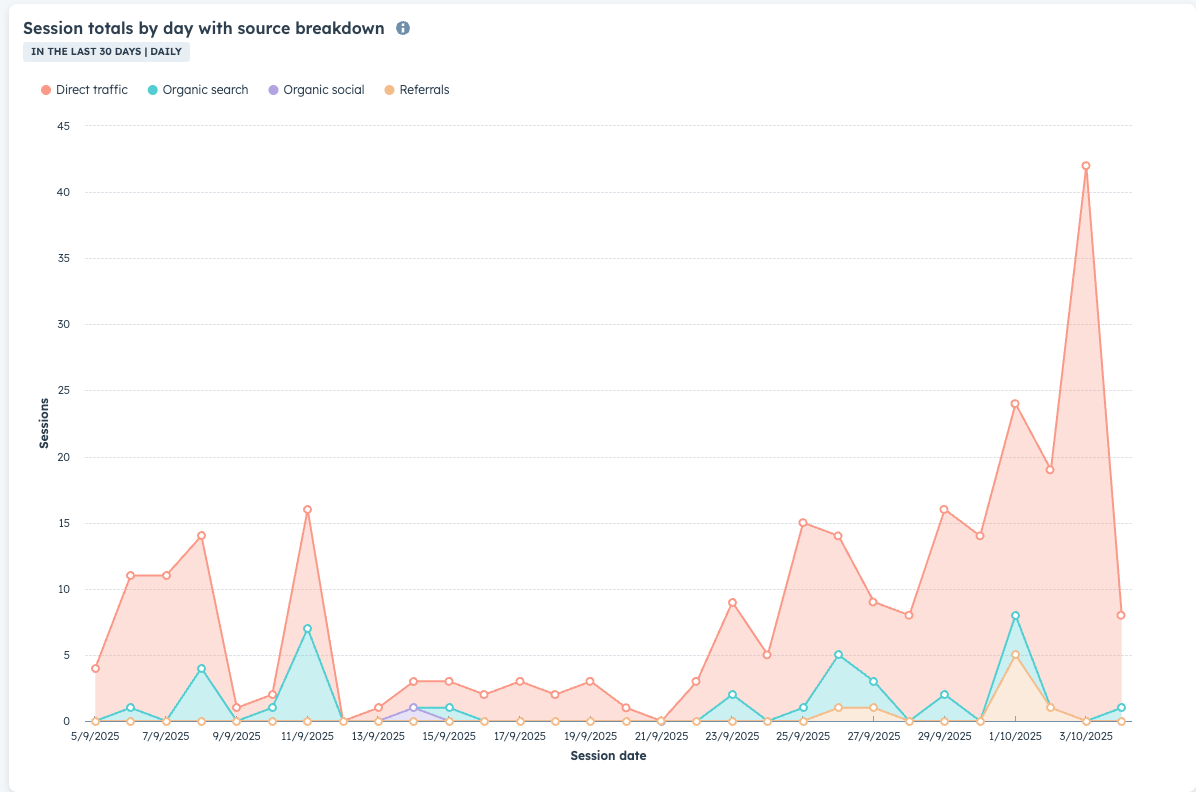
HubSpot tracking code is installed by default if HubSpot integration is enabled in _data/siteConfig.yml. This will enable the features that are related to the tracking code such as monitoring the visits on the site, the cookies banner, call to actions and others.
You may need to consult the HubSpot documentation to understand more what are the features enabled with the HubSpot tracking code.
Usage
The second out-of-the-box HubSpot integration feature offered by Docaroo is the feedback form which can be located on the right-bottom corner of each page, in the Feedback and Support section. Using this feature requires to have an active HubSpot account (can be even on free plan) and to do some configurations in HubSpot. These configuration are:
- create a custom property to the
Contactobject, namedWas this useful?, internal name=was_this_useful_, type=Radio select, having 2 options (YESandNO); - create a custom property to the
Contactobject, namedSubject, internal name=subject, type=Single line of text; - create a custom property to the
Contactobject, namedSource of last submission, internal name=source, type=Dropdown selecthaving as options the values you want to use as sources for the form submissions (i.e. the site name); - use the form designer to create your form as shown in the next gallery;
- in the form designer click
Embedbutton to get the form information (formID, region, portalID) and configure these in_data/buildConfig.ymlunderhubspotkey;
Please consult the HubSpot documentation to learn how to add custom props to HubSpot objects and HubSpot forms designer documentation to learn how to design a HubSpot form.


Advanced
HubSpot forms integration is not limited to the feedback form which is provided out-of-the-box and in a no-code way. Docaroo offers the possibility to embed any HubSpot form created in the HubSpot forms designer, but this requires a bit more advanced coding skills. Even in this case, it is not necessary to start everything from scratch, Docaroo assists you with:
- a framework to embed any form: see
assets/js/hs-integrate.js - a very easy to understand model to style and adjust the form to your needs and preferences: see
assets/js/hs/hs-feedback-form.jsandassets/css/hs - the easiest way to activate your form in a page, and to apply the custom features and styles: see
assets/js/site-page.js, functionpage__getPageFeedbackForm
When using the pattern above, embedding a HubSpot form into the documents means:
- design your form in HubSpot forms designer
- create your own style for the form, to fit the design of the site and save it in
assets/css/hsdirectory - add features (such as translations) as a js script and save it in
assets/js/hsdirectory - create the form activation function and call it where you need it
You may use the HubSpot multilanguage support for forms, but, usually, this may require to create a different instance of form for each language which leads to the necessity to monitor multiple forms submissions for consolidated submission reports. Adding custom translation features (as the feedback form has) makes that all submissions to be consolidated under a single HubSpot form, having also a language identifier.
There is no limitations to the number of style and js scripts to can use to customise your form. Feel free to split your code in as many files as you need, but do not forget to include them all in the form activation function. You may also use SASS/SCSS to generate your styles, but be aware that only CSS files can be sent to the form for styling
On this page