
Summary
Deploying the site means to update the production environment (such as on-prem, or Github pages or Netlify, or similar). This is the next step after building and testing the site. It is strongly recommended to not build the site directly in the production environment, mostly when this environment is hosted by Github pages or Netlify or similar (build time can be long and can consume CI/CD minutes for tasks that are not necessary to be executed in production environment).
In essence, deploying means to move the assets generated by the site build process to their final destination, the place targeted by the site production URL defined as environment variable, under the key DEPLOY_PROD_BASE_URL. This final place can be on a private infrastructure/server or hosted by Github pages or Netlify or other similar hosting solutions.
The deployment process depends on the production environment option. Docaroo provides out-of-the-box actions to deploy on Github pages and on Netlify.
Limitations
Multilanguage deployment is provided out-of-the-box only for Github pages. For other types of production environment, multilanguage deployment must be handled as per the specifics of that environment. In essence, each language variant is a separated instance of the site, accessible under <site_url>/<lang-code>, thus configuring this should not raise any issue in any production environment.
Be aware of the Algolia DocSearch limitations. One of the eligibility criteria for free use of Algolia DocSearch is to be used on public documentation/technical blogging sites. If you plan an internal organisational site, you may be not eligible for Algolia DocSearch and you may need to extend the site searching UI experience with Algolia Search or to use the default search feature which is not so advanced as any Algolia search option.
Environment variables
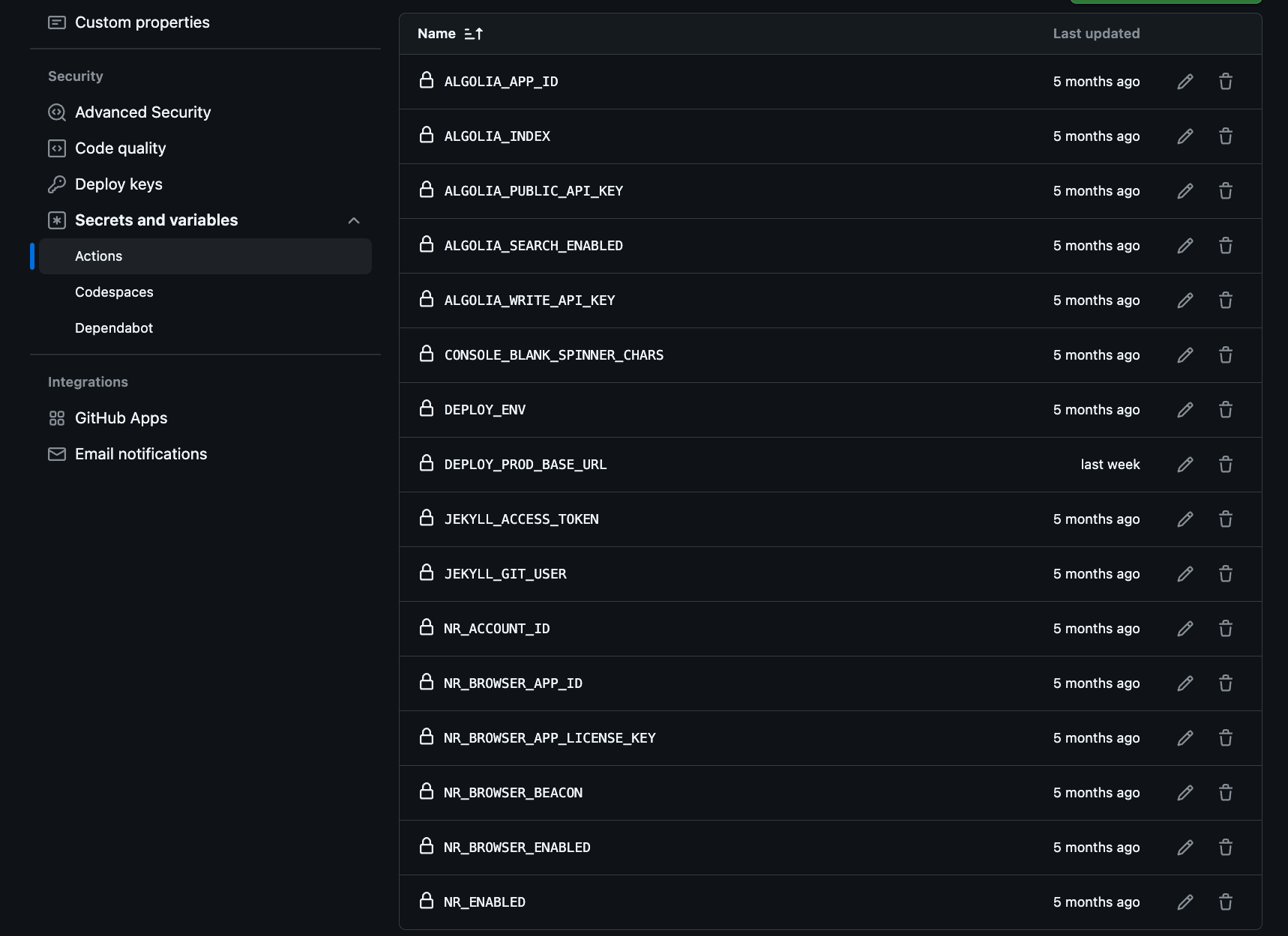
The environment variables used for the deployment process are shown next:
          JEKYLL_ENV: production
          JEKYLL_ACCESS_TOKEN: ${{ secrets.JEKYLL_ACCESS_TOKEN }}
          JEKYLL_GIT_USER: ${{ secrets.JEKYLL_GIT_USER }}
          CONSOLE_BLANK_SPINNER_CHARS: ${{ secrets.CONSOLE_BLANK_SPINNER_CHARS }}
          ALGOLIA_WRITE_API_KEY: ${{ secrets.ALGOLIA_WRITE_API_KEY }}
          ALGOLIA_INDEX: ${{ secrets.ALGOLIA_INDEX }}
          ALGOLIA_APP_ID: ${{ secrets.ALGOLIA_APP_ID }}
          ALGOLIA_PUBLIC_API_KEY: ${{ secrets.ALGOLIA_PUBLIC_API_KEY }}
          ALGOLIA_SEARCH_ENABLED: ${{ secrets.ALGOLIA_SEARCH_ENABLED }}
          DEPLOY_PROD_BASE_URL: ${{ secrets.DEPLOY_PROD_BASE_URL }}
          NR_ENABLED: ${{ secrets.NR_ENABLED }}
          NR_BROWSER_ENABLED: ${{ secrets.NR_BROWSER_ENABLED }}
          NR_BROWSER_APP_ID: ${{ secrets.NR_BROWSER_APP_ID }}
          NR_ACCOUNT_ID: ${{ secrets.NR_ACCOUNT_ID }}
          NR_BROWSER_APP_LICENSE_KEY: ${{ secrets.NR_BROWSER_APP_LICENSE_KEY }}
          NR_BROWSER_BEACON: ${{ secrets.NR_BROWSER_BEACON }}
When deploying on Github pages or Netlify, please consult the related documentation for understanding how to create the Github repository action secrets or Netlify build environment variables.

Github pages
Before deploying on Github pages it is necessary to configure the pages for the site repository.
Please consult Github pages documentation to understand how to configure it for the site repository and for the site domain.
Deployment on Github pages is provided out-of-the-box by a deployment action.
📁 workflows/
├── 📄 deploy-site-multilang-no-py.yml
└── 📄 deploy-site-multilang.yml
The action used for Github pages deployment is deploy-site-multilang-no-py.yml ans is named (NO-PY) Manual Deploy Multilingual Jekyll site to Pages. This action is designed to perform the minimum needed processing of the content for production and for deploying a multilanguage site (each language variant being hosted in a dedicated repository branch named with the two-digit language code). It is also designed to not executing the time consuming building tasks (the ones based on using Huggingface models or using intensive Python content processing), thus we emphasise again that ALWAYS BUILD AND TEST THE SITE IN THE DEVELOPMENT ENVIRONMENT BEFORE DEPLOYING TO PRODUCTION.
See in the next video how a successful deployment on Github pages should look like:

It is seen that the deploy action is triggered manually. Of course, at any time, the action trigger can be modified in order to start the deployment automatically (i.e. when new content is pushed to the gh-pages or any language branch) or scheduled (if your Github plan allows to schedule actions).
It is strongly recommended to avoid automatic deploy action trigger on content push, mostly when the content is created in a collaborative way by many authors. The best option is to trigger it manually (as provided by default) or scheduled (once per week if there are relevant content updates)
Netlify
Before deploying on Netlify it is necessary to configure the environment for the site repository. Builds
Please consult Netlify documentation to understand how to configure it for the site repository and for the site domain.
See in the next video how a successful deployment on Netlify should look like:

Deployment to Netlify is even more straight forward than deployment on Github pages. Once the Netlify site is connected to the site repository (to the production branch of your choice) and the environment variables are set, builds are automatically triggered when push on the production branch.
It is strongly recommended to create a separated production branch in your repository and to merge any other development branches into it, manually or scheduled to avoid triggering a build each time when the content changes, thus minimising the CI/CD pipeline time consumption.
One important reason to choose Netlify as production environment is that, even in the free plan, Netlify provides a solution to have a backend (Netlify functions) and this can open many opportunities to further extend the functionality.
Multiple authors
Using Docaroo in a multi-authors environment depends on the maturity of the organisation in using various collaboration/sharing tools.
The easiest option for having multiple authors is to clone the site repository on a shared folder in your network (✳️ this will be the development environment ✳️) ➡️ install the editor of your choice on the devices of the authors ➡️ add shared doc-contents to the editors ➡️ build and test in development environment ➡️ deploy to production environment.
It is also possible to create a more sophisticated environment using Git Submodules: Create a dedicated contents repository ➡️ Clone Docaroo repository to your development environment ➡️ Remove default doc-contents folder ➡️ link contents repository to the main repository ➡️ install the editor of your choice on authors devices ➡️ clone/fork the content repository on author devices ➡️ for convenience, Github desktop can be installed to authors devices to facilitate pushing content to the content repository ➡️ merge pull requests opened by authors when pushing updates to the content repository ➡️ fetch content repository into main repository on the development environment ➡️ build and test ➡️ deploy in production
There are pros and cons for each multi-author deployment; while the easy way may require additional configurations (such as VPN) if authors are contributing from outside the organisation and will keep only the last version of a document (previous ones being overwritten), but it is so easy to be used, the sophisticated deployment can require learning to use some additional apps (such as Github desktop), requires better administration skills and Github knowledge but it is fully multi-author and preserves the whole history of modifications.
On this page